Introduction
Single device remediation in HP Workforce Experience Platform (WXP) helps IT admins resolve issues on individual devices. It includes Best Match, which uses AI to recommend the most relevant remediation based on the device issue and the available remediations’ metadata and applicability. IT admins can review the recommendation and select a remediation to run.
Prerequisites
To use this feature, the following requirements must be met:
Your organization must have an active WXP Navigator Pro or Elite subscription.
You must have the IT Admin or Partner Admin role in WXP.
Remediation with AI must be enabled in the Labs module.
For script remediation, the device must run Windows 10 or Windows 11 and meet the requirements of the selected script.
Alerts without software remediation: Best Match supports most PC alerts.
The following hardware alerts do not have software remediations and require device repair or replacement:
Battery Failure
Battery Recall
Battery not detected
Fan issue (critical)
Fan issue (warning)
Hard disk drive SMART failure
Disk Failure
Reviewing Best Match
Log in to WXP. The Home page is displayed.
From the left navigation menu of WXP, select Alerts > Active Alerts. The Active Alerts page is displayed, showing two tabs:
Fleet-wide
PCs
Select the PCs tab to view devices with active alerts.
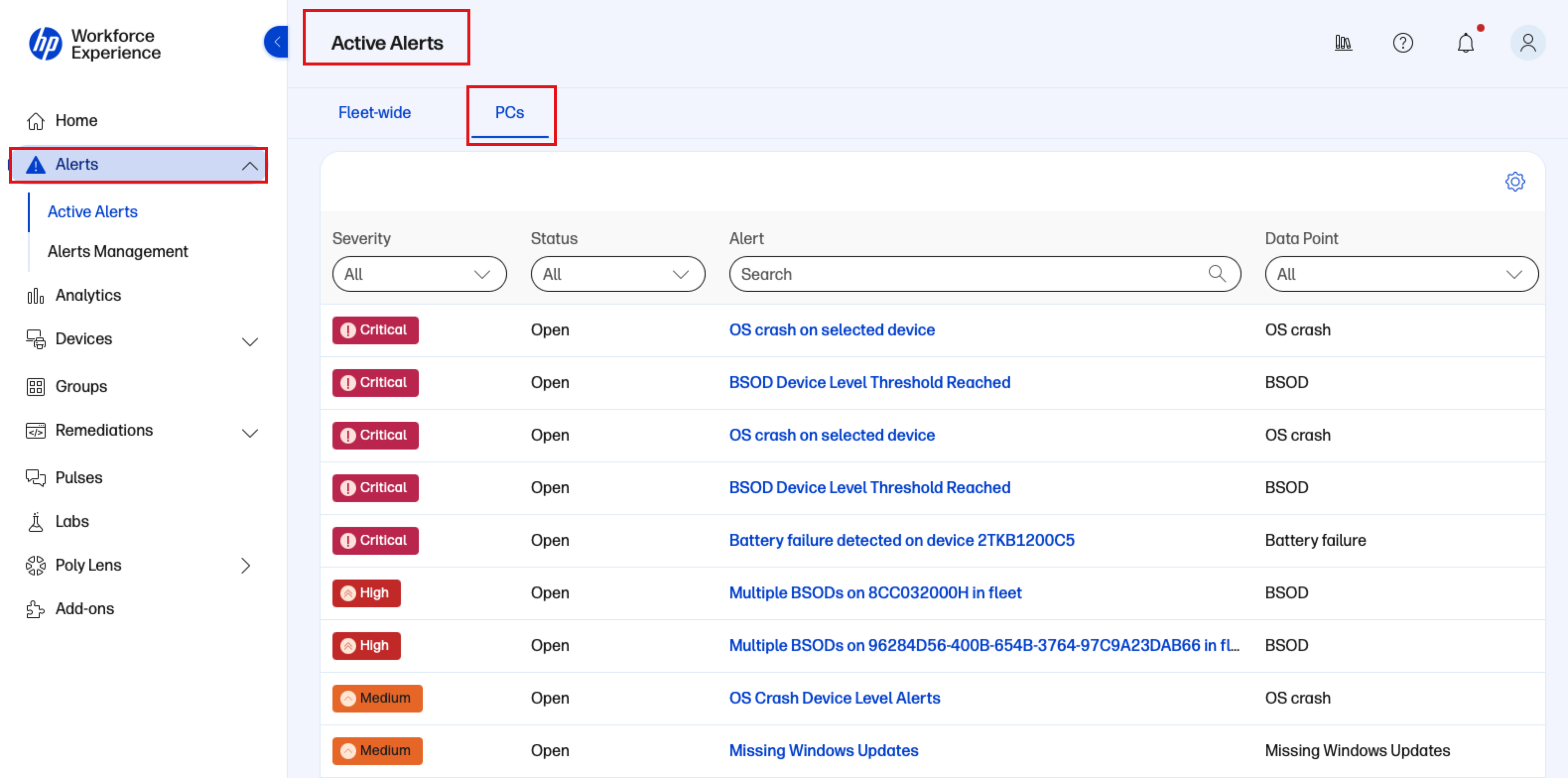
Select an alert. The device Timeline opens with the alert in context.
Use the search box or column filters to find an alert.
Click on an alert event on the timeline to open its details in the right-side panel.
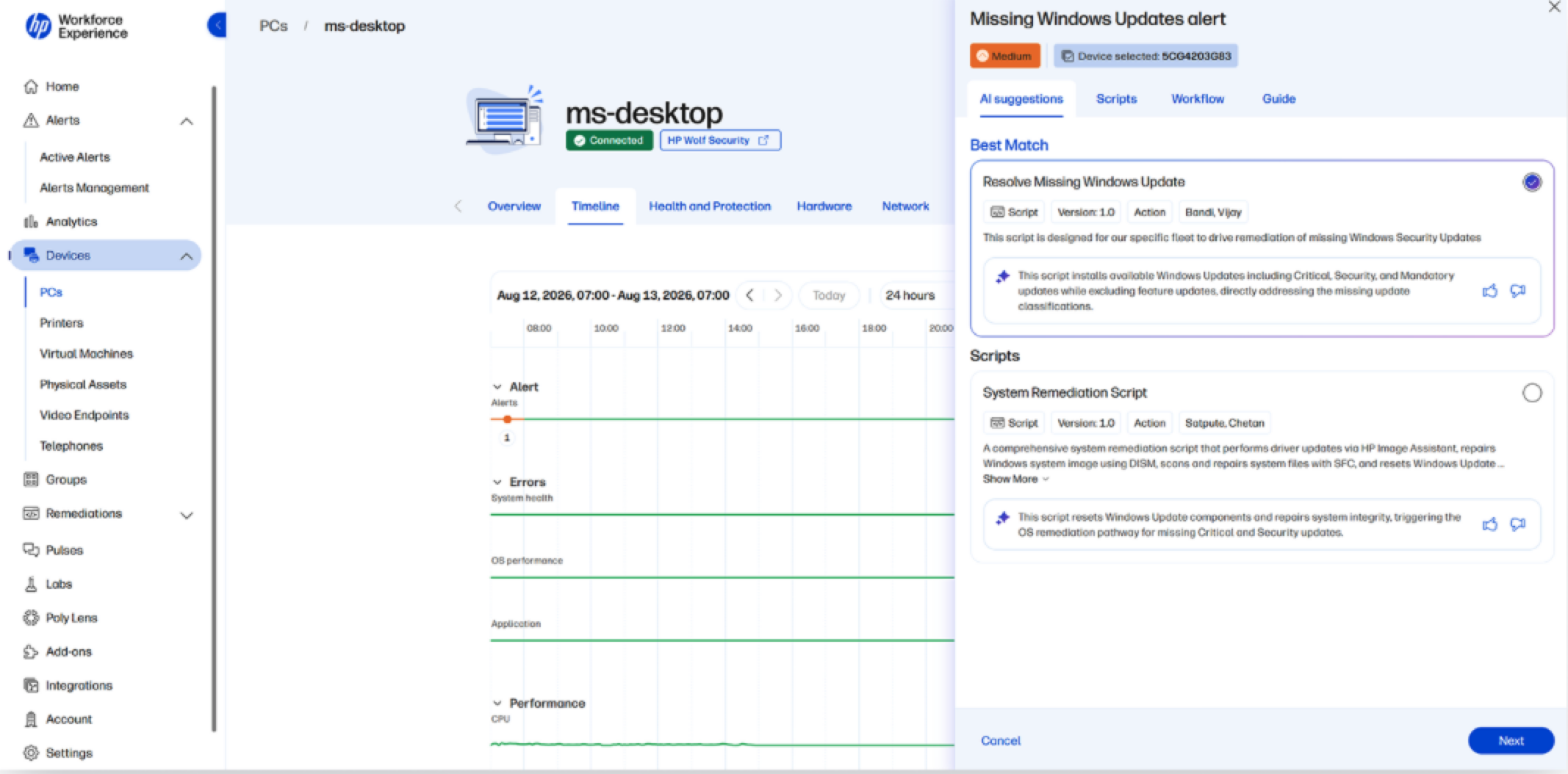
Use the time range filter to find the required alert event.
In the Actions dropdow, select Remediate to view remediation options for the device.
Reviewing Remediation Options
The AI Suggestions tab displays relevant remediation suggestions, with Best Match displayed first when available. IT admins can select the recommended remediation or choose an alternative from another tab.
The following tabs provide remediation options and guidance.
Tab | Description |
|---|---|
AI Suggestions | Displays relevant remediation suggestions, with Best Match displayed first when available. |
Scripts | Provides searchable HP Gallery and My Library scripts, including Action and Evaluation scripts. |
Workflow | Displays workflows associated with the alert. |
Guide | Displays possible causes, suggested remediations, and related articles. |
Note: If no matching recommendation is available, the AI Suggestions tab displays No data to display. Select another tab to search for and manually select a remediation.
Before proceeding, review the selected remediation’s compatibility, description, version, author, execution properties, parameters, target devices or groups, and expected impact.
Running a Script Remediation
Select a script and click Next.
Enter the required parameter values and click Next.
On the Review screen, verify the target audience, script parameters, and available execution timing. Edit these settings as needed.
Click Run to initiate the remediation.
HP Gallery scripts are automatically added to My Library to enable assignment. Scripts can target selected devices or manual groups. Policies must be assigned to groups.
For additional information, see Using AI-Assisted Remediation for Alerts.
Offline Devices
An offline device must reconnect to receive and execute a remediation. Script delivery retries for up to 24 hours. Policies follow their assignment and scheduling rules.
For more information, see Overview of Scripts and WXP Policy FAQs.
Viewing Remediation Results
Go to Remediations > Activity to view the execution status, device counts, errors, initiator, and initiation time.
Open a remediation to view device-level results and failure details.
Review the results and confirm that the underlying issue is resolved.
Note: Successful execution does not automatically mark the alert as resolved. Updated telemetry must satisfy the alert rule’s recovery conditions for the configured stable recovery period.
For additional information, see Viewing Remediation Activities and Custom Alert Capabilities.
Contact Us
For any assistance, create a support case or email support@wxp.hp.com.