Introduction
The Device Actions feature in HP Workforce Experience Platform (WXP) enables IT administrators to initiate one-time remediations to resolve identified device issues without writing code. These actions complement proactive, recurring remediations configured through Policies.
SoftPaq Install is a Device Action that enables IT administrators to install available driver updates packaged as HP SoftPaqs on one or more devices. Administrators can run installations immediately or schedule them for a specific time. This helps IT teams address driver issues without manually installing updates on each device.
To use SoftPaq Install:
Note: This release supports driver updates packaged as SoftPaqs. Currently, BIOS updates packaged as SoftPaqs are not supported.
Prerequisites
Ensure the following requirements are met:
WXP plan: SoftPaq Install is available with WXP Pro and WXP Elite plans
WXP role: You must have the IT Admin or Partner Admin role
Agent versions: The following WXP Insights agent component versions or later are required:
Component
Minimum version
WXP Insights Analytics
4.2.2750.0
WXP Insights
5.24.184
WXP Insights Plugin Package
1.0.47.0
If the setup banner appears in the HP Driver Update Insights report or on the Device details page, complete the Set up SoftPaq remediation process.
Setting Up and Using Device Actions
Follow the instructions below to enable SoftPaq Install and install SoftPaqs on one or more devices.
1. Enabling SoftPaq Install
You can enable SoftPaq Install from the following locations:
The HP Driver Update Insights (HP SoftPaq Updates) report page.
The BIOS and Drivers tab on an individual device’s Device details page.
The Timeline tab on an individual device’s Device details page, for a Missing SoftPaq system event.
You can run a SoftPaq installation immediately or schedule it for a specific time. Each Device Action runs only once. Recurring execution is not supported.
Note: For proactive, recurring driver and BIOS updates, use Policies.
From the HP Driver Update Insights (HP SoftPaq Updates) Report
Log in to WXP. The Home page is displayed.
In the left navigation menu of WXP, click Analytics. The Analytics Dashboard is displayed.
On the Analytics Dashboard, click Modern Reports. The existing reports are displayed.
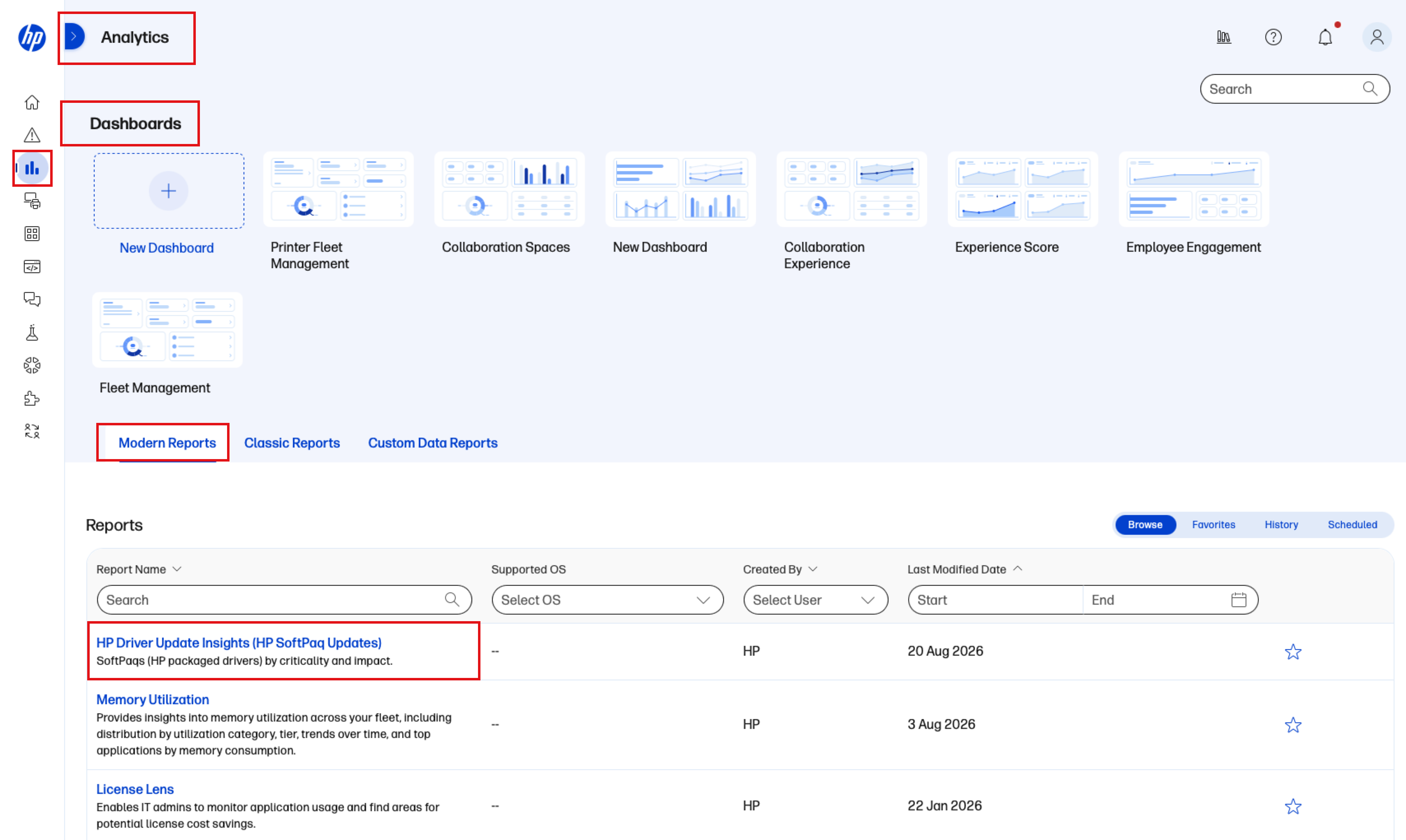
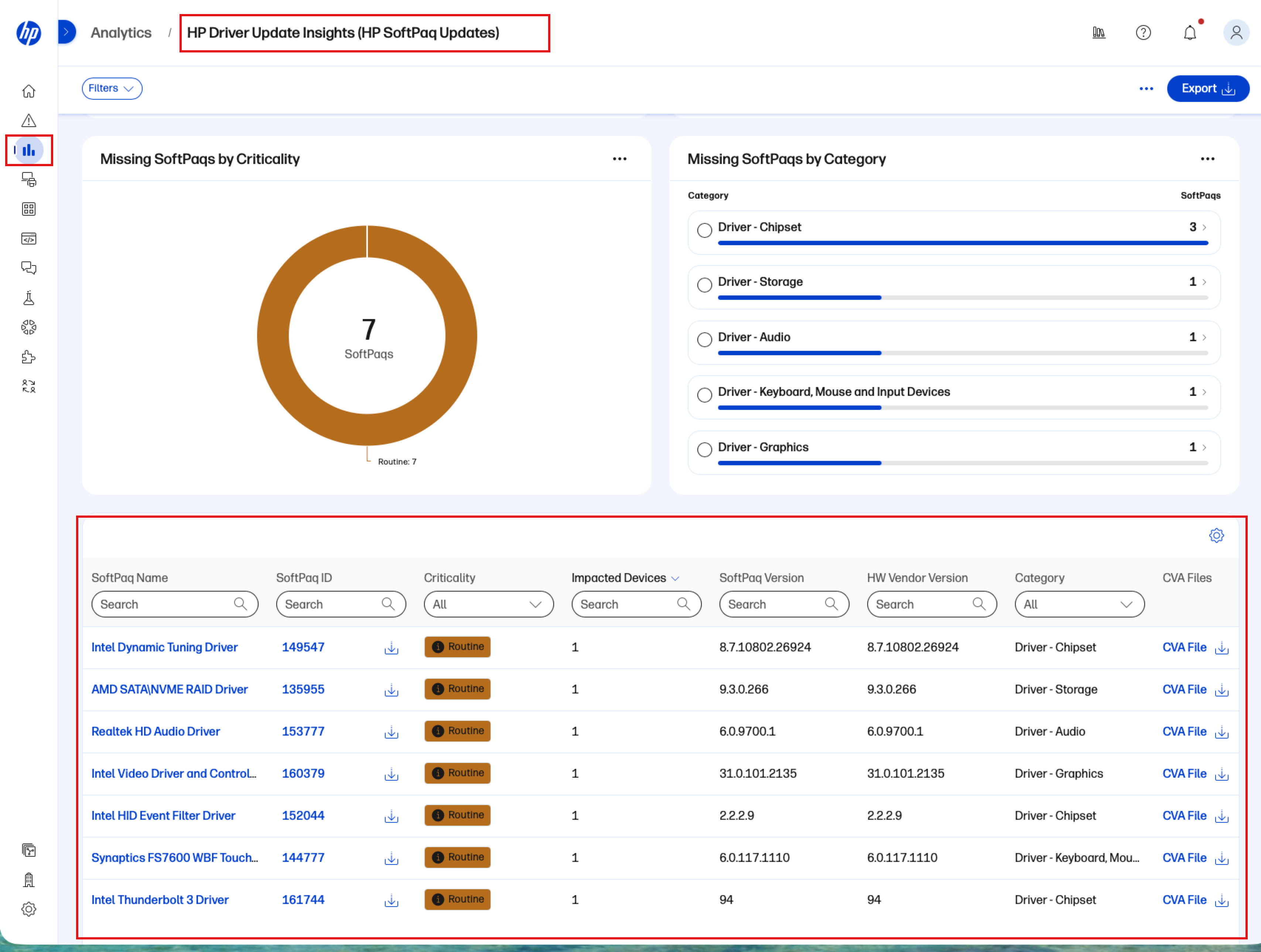
Open the HP Driver Update Insights (HP SoftPaq Updates) report.
Scroll to the SoftPaqs table and click a SoftPaq name.
In the banner above the device table, click Get Started.
Follow the setup instructions to enable SoftPaq remediation.
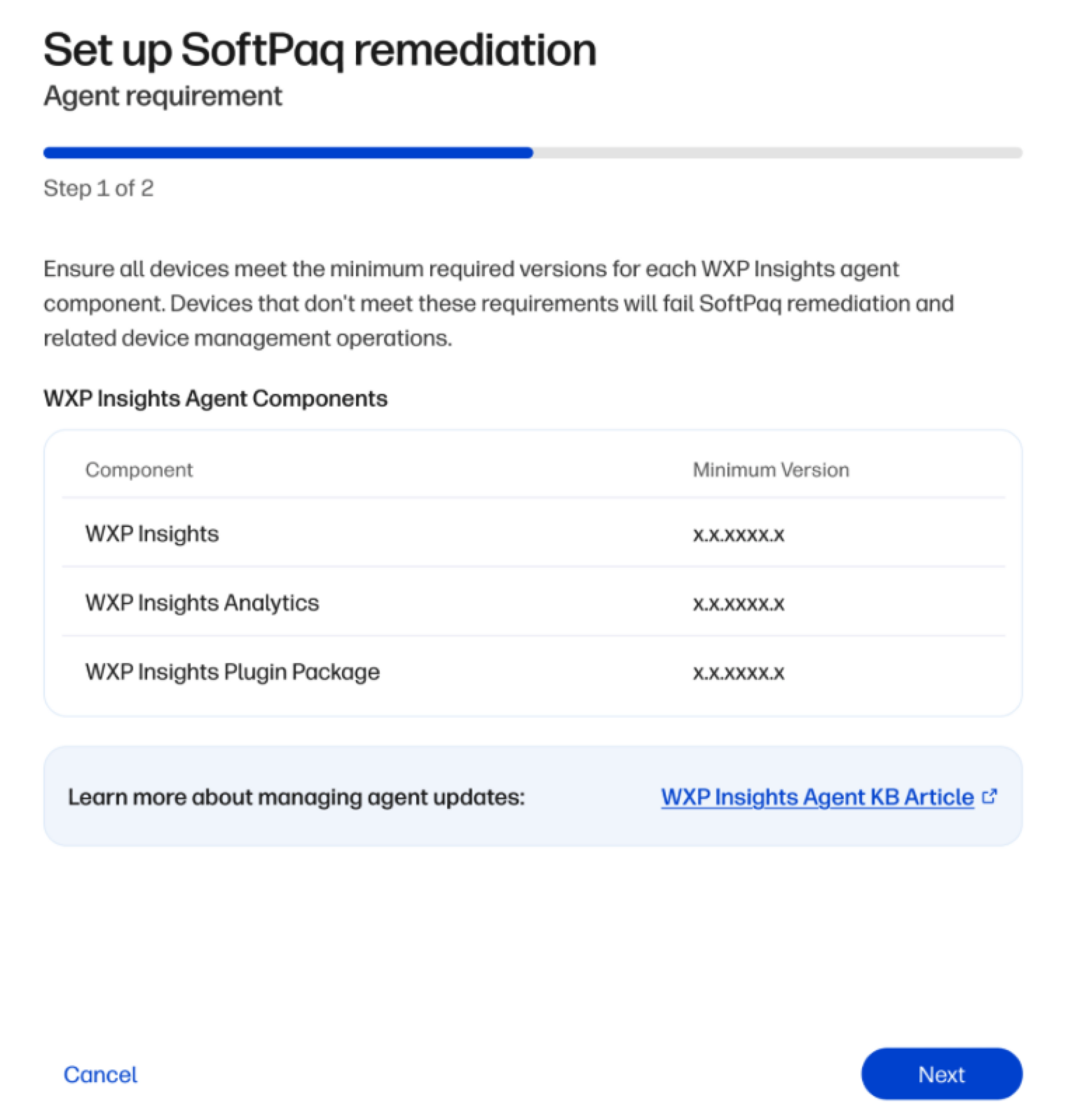
Click Complete setup.
From an Individual Device
From the left navigation menu of WXP, click Devices > PCs. The PCs page is displayed.
On the PCs page, click the serial number of a device that has an available driver update packaged as a SoftPaq. The Device details page is displayed.
On the Device details page, click the BIOS and Drivers or Timeline tab.
In the banner “Set up Softpaq remediation to install the missing SoftPaqs on your devices,” click Get Started.
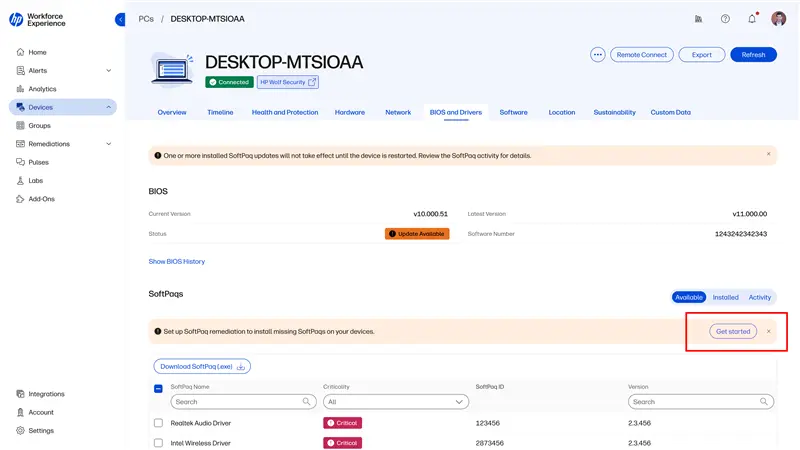
Follow the setup instructions to enable SoftPaq remediation.
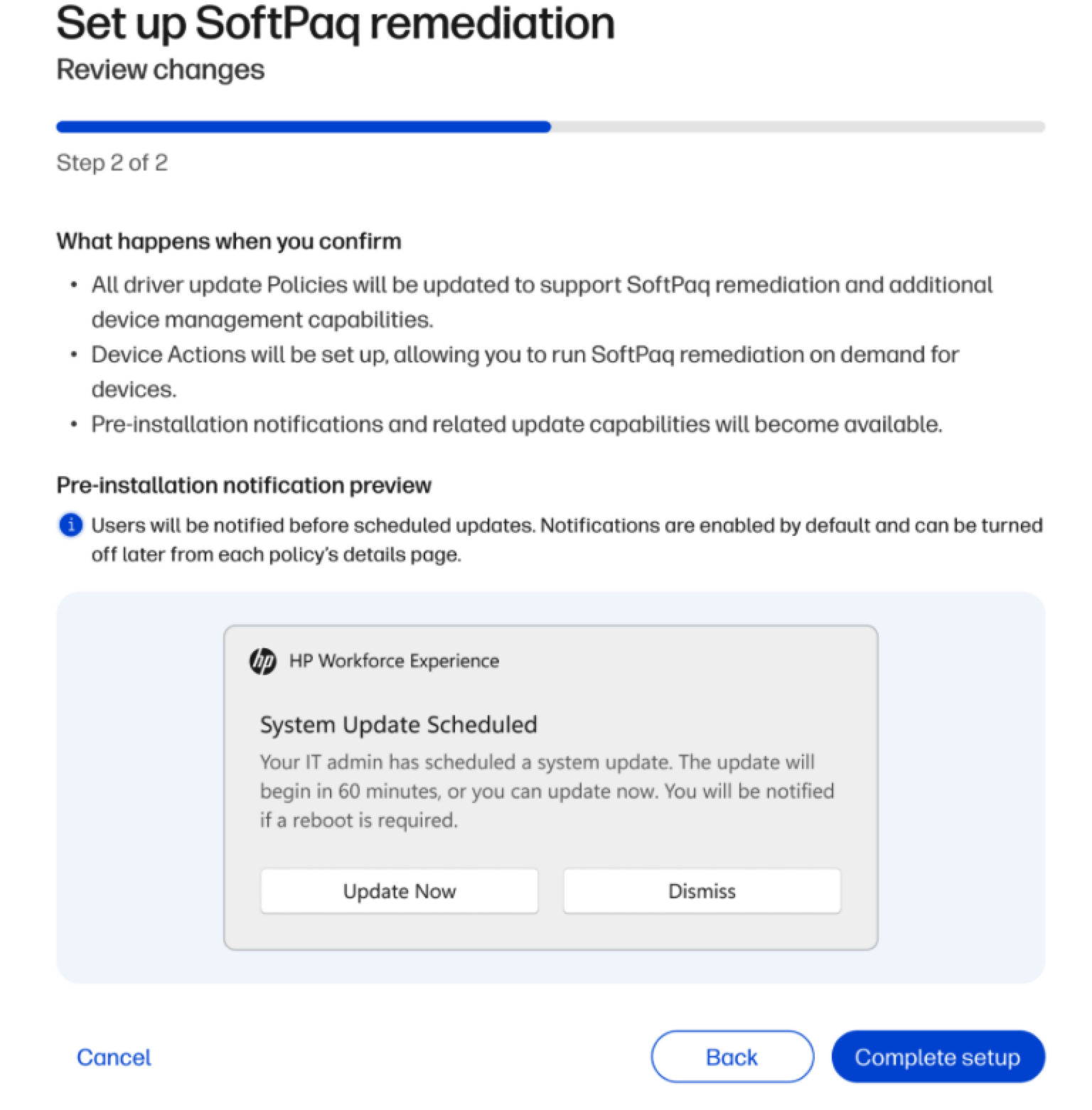
Click Complete setup.
Installing a SoftPaq
Follow the instructions below to install available SoftPaqs on one or more devices.
Installing a Softpaq on Multiple Devices
Follow the instructions below to install a SoftPaq on multiple devices from the HP Driver Update Insights (HP SoftPaq Updates) report.
From the left navigation menu of WXP, click Analytics. The Analytics Dashboard is displayed.
On the Analytics Dashboard, click Modern Reports. The existing reports are displayed.
Open the HP Driver Update Insights (HP SoftPaq Updates) report.
Click the SoftPaq that contains the driver update you want to deploy.
Review and confirm the target devices, then click Remediate.
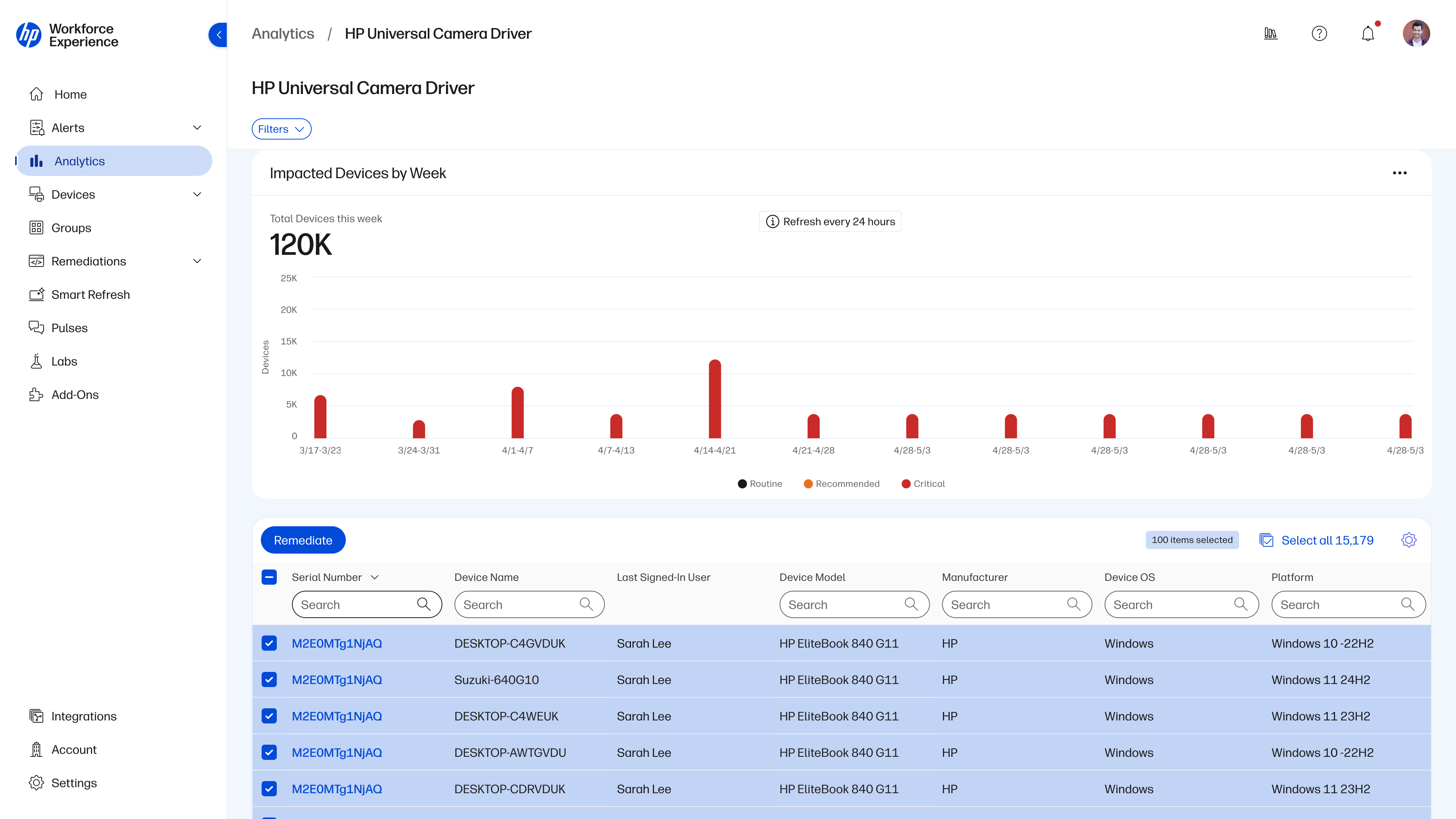
On the Review page, review or configure the following settings:
Name
Description
Pre-Installation Notification
Schedule
SoftPaq details
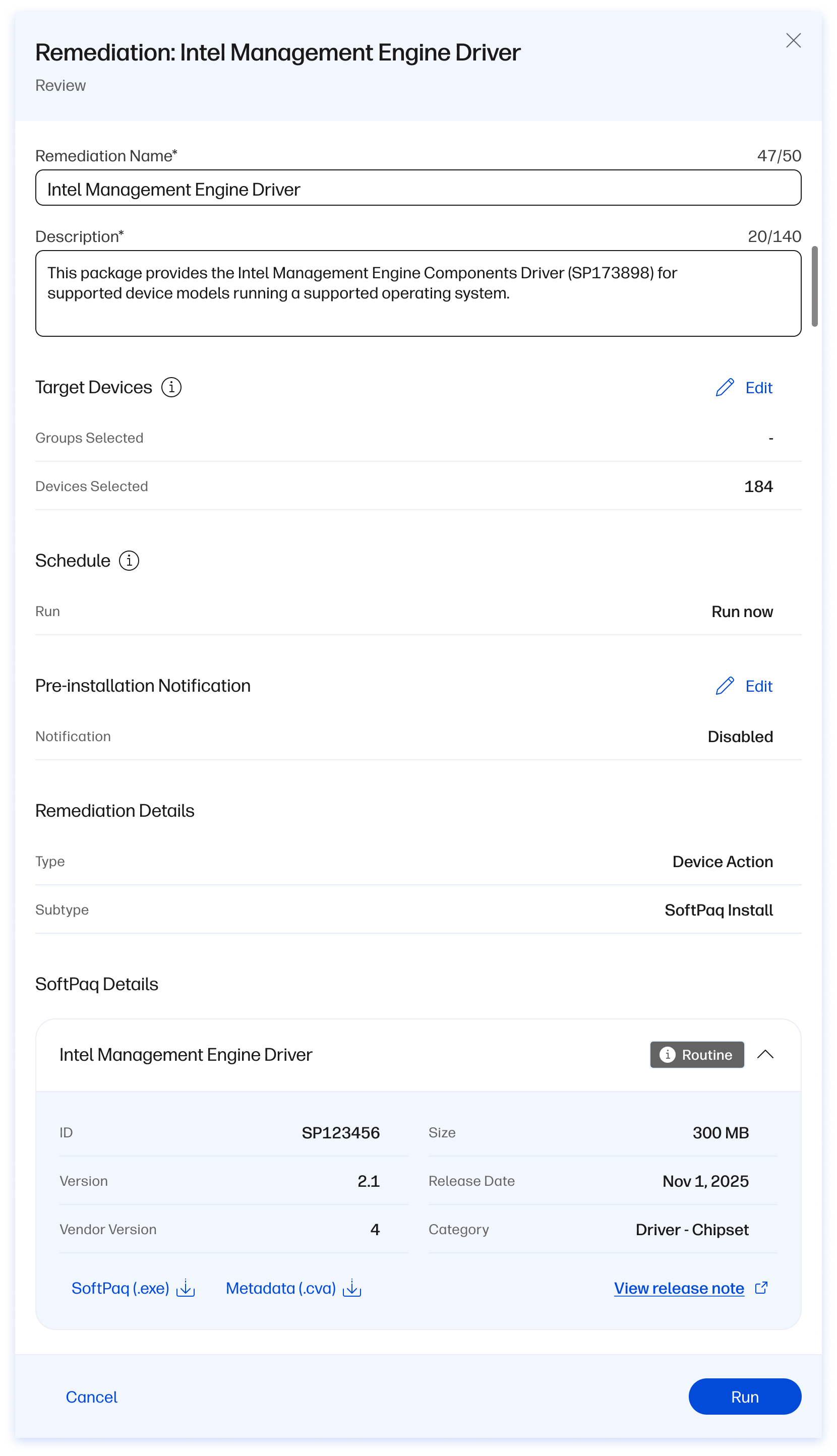
Choose whether to run the action immediately or at a scheduled time. Scheduled times use Coordinated Universal Time (UTC)
Click Run to submit the Device Action
Note: This workflow supports one SoftPaq per Device Action across multiple devices.
Installing SoftPaqs on an Individual Device
Follow the instructions below to install SoftPaqs on an individual device from the BIOS and Drivers tab or a Missing SoftPaq system event.
From the BIOS and Drivers tab
From the left navigation menu of WXP, click Devices > PCs. The PCs page is displayed.
On the PCs page, click the serial number of the device that has an available driver update packaged as a SoftPaq. The Device details page is displayed.
On the Device details page, click the BIOS and Drivers tab.
On the BIOS and Drivers tab, select the Available tab.
Select one or more SoftPaqs that contain driver updates, then click Remediate.
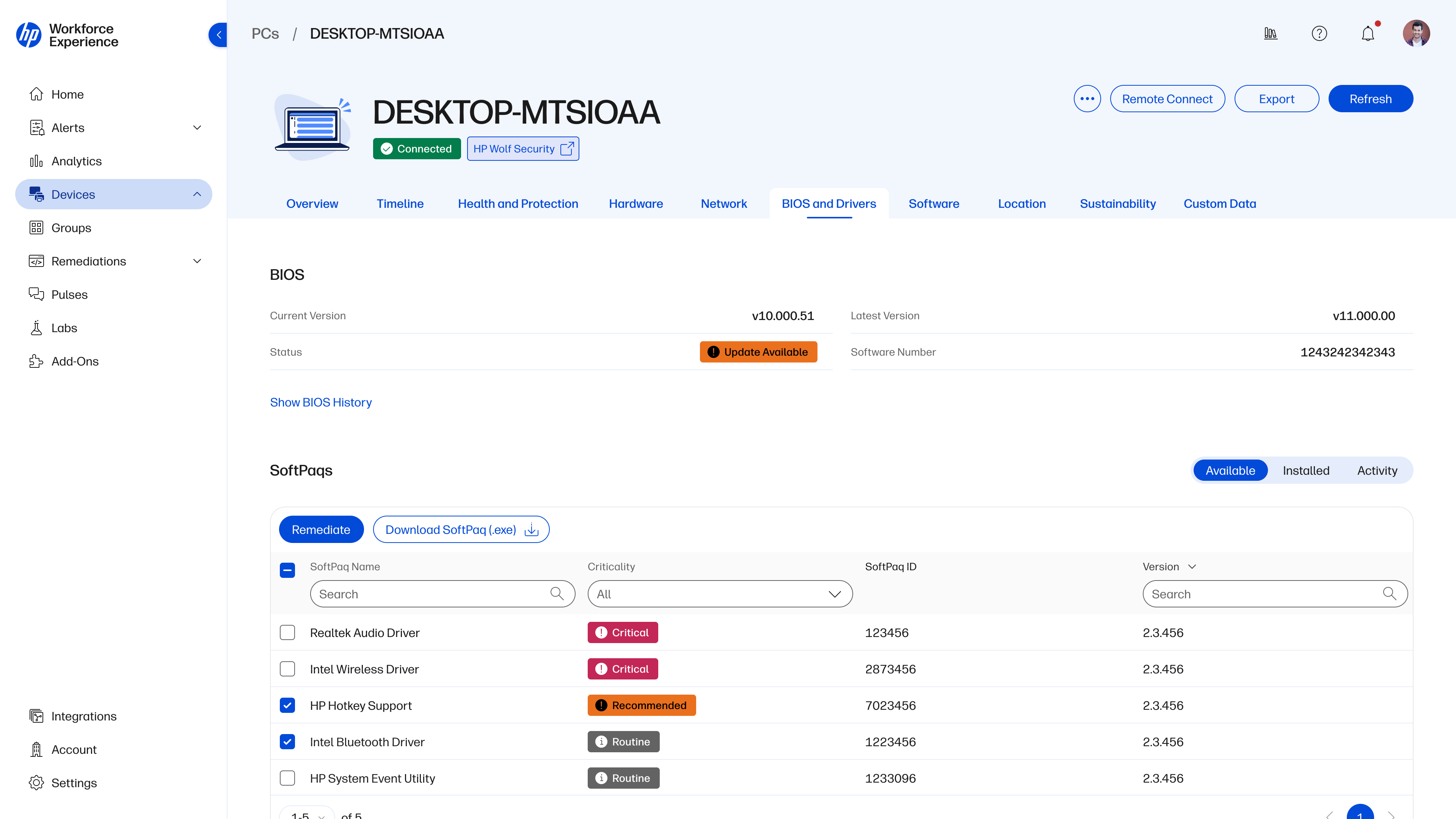
On the review page, review or configure the following settings:
Name
Description
Pre-Installation Notification
Schedule
SoftPaq details
Choose whether to run the action immediately or at a scheduled time. Scheduled times use Coordinated Universal Time (UTC)
Click Run to submit the Device Action.
Note: This workflow supports multiple SoftPaqs in one Device Action for an individual device.
From a System Event
From the left navigation menu of WXP, click Devices > PCs. The PCs page is displayed.
On the PCs page, click the serial number of the device that has an available driver update packaged as a SoftPaq. The Device details page is displayed.
On the Device details page, click the Timeline tab.
Under System Events, locate and select a Missing SoftPaq event.
Click Remediate to open the remediation process from the event’s details panel.
Review the selected SoftPaqs that contain driver updates and the remediation settings.
Choose whether to run the action immediately or at a scheduled time. Scheduled times use Coordinated Universal Time (UTC).
Click Run to submit the Device Action.
Enabling Pre-Installation Notifications
You can enable an optional pre-installation notification when configuring the Device Action.
When this setting is enabled, the device user receives a Windows notification 60 minutes before installation begins. The user can:
Select Update Now to begin installation immediately
Dismiss the notification or take no action. Installation begins automatically after 60 minutes
Note: Dismissing the notification does not cancel the installation.
Tracking Activity
Follow the instructions below to track the status of a SoftPaq installation and review the results for each device:
From the left navigation menu of WXP, click Remediations > Activity. The Activities tab is displayed.
Locate the remediation by its name. SoftPaq Install activities have the following values:
Type: Device Action
Subtype: SoftPaq Install
Click the remediation name to open its activity details.
Review the device execution summary and the results for each device.
Status
Description
Success
The Device Action completed successfully.
Error
The Device Action encountered an error.
In Progress
The Device Action is running. Results are available after execution is complete.
Not Processed
The Device Action has not started on the selected device.
Click a device name to open its execution details. When available, the details panel displays the output, error information, exit codes, and whether a restart is required. The default name and description contain information about the SoftPaqs that were installed.
If log data is available, click Download Log to download the log for analysis.
Contact Us
For assistance, email support@wxp.hp.com.