---
title: "Microsoft Teams - Mass Deployment of MTR Agent"
slug: "microsoft-teams-mass-deployment-of-mtr-agent"
tags: ["WXP Collaboration"]
updated: 2026-05-15T14:31:19Z
published: 2026-05-15T14:31:19Z
canonical: "learn.workforceexperience.hp.com/microsoft-teams-mass-deployment-of-mtr-agent"
---
> ## Documentation Index
> Fetch the complete documentation index at: https://learn.workforceexperience.hp.com/llms.txt
> Use this file to discover all available pages before exploring further.
# Microsoft Teams - Mass Deployment of MTR Agent
WXP Collaboration has released the MTR Agent, which enables direct peripheral and status monitoring. The agent currently supports only Microsoft Teams Rooms running Windows. This guide will walk you through mass deploying the agent.
## Prerequisites
Ensure the following prerequisites are met before deployment:
- Microsoft Teams is added as infrastructure in WXP Collaboration.
- Access to Microsoft Endpoint Manager (Intune)
- Device Group of only Microsoft Teams Rooms
- Collector Version 4.8.8 or above
- Collector running in relay mode with relay token.
- The intunewin file
Note
Contact your Customer Success Manager (CSM) to obtain the intunewin file.
## Network Requirements
All Microsoft Teams Rooms (MTR) devices must be able to connect to the WXP Collaboration Data Collector to transmit monitoring data. Ensure the following ports are open inbound to the WXP Collaboration Data Collector:
- Port 80
- Port 81
The ports can be changed by setting the following property in the vyoptacollector.xml file.
```
PORTNUMBER
```
For example, if you set the relay port to 8888, both ports 8888 and 8889 will be used.
## Set the WXP Collaboration Data Collector to Relay Mode
1. Log in to the main WXP Collaboration Data Collector server.
2. Go to the WXP Collaboration install directory, typically located at C:\WXP Collaboration.
3. Edit the vyoptacollector.xml file.
Add the following properties:
```
relay
false
```
1. Save the file.
2. Restart the WXP Collaboration Collector Service.
## Deploy the MTR Agent
1. Go to [https://endpoint.microsoft.com.](https://endpoint.microsoft.com/)
2. In the left menu, select **Apps** > **All apps**.
3. Select **Add**, then under **App type** dropdown, select Windows app (Win32). 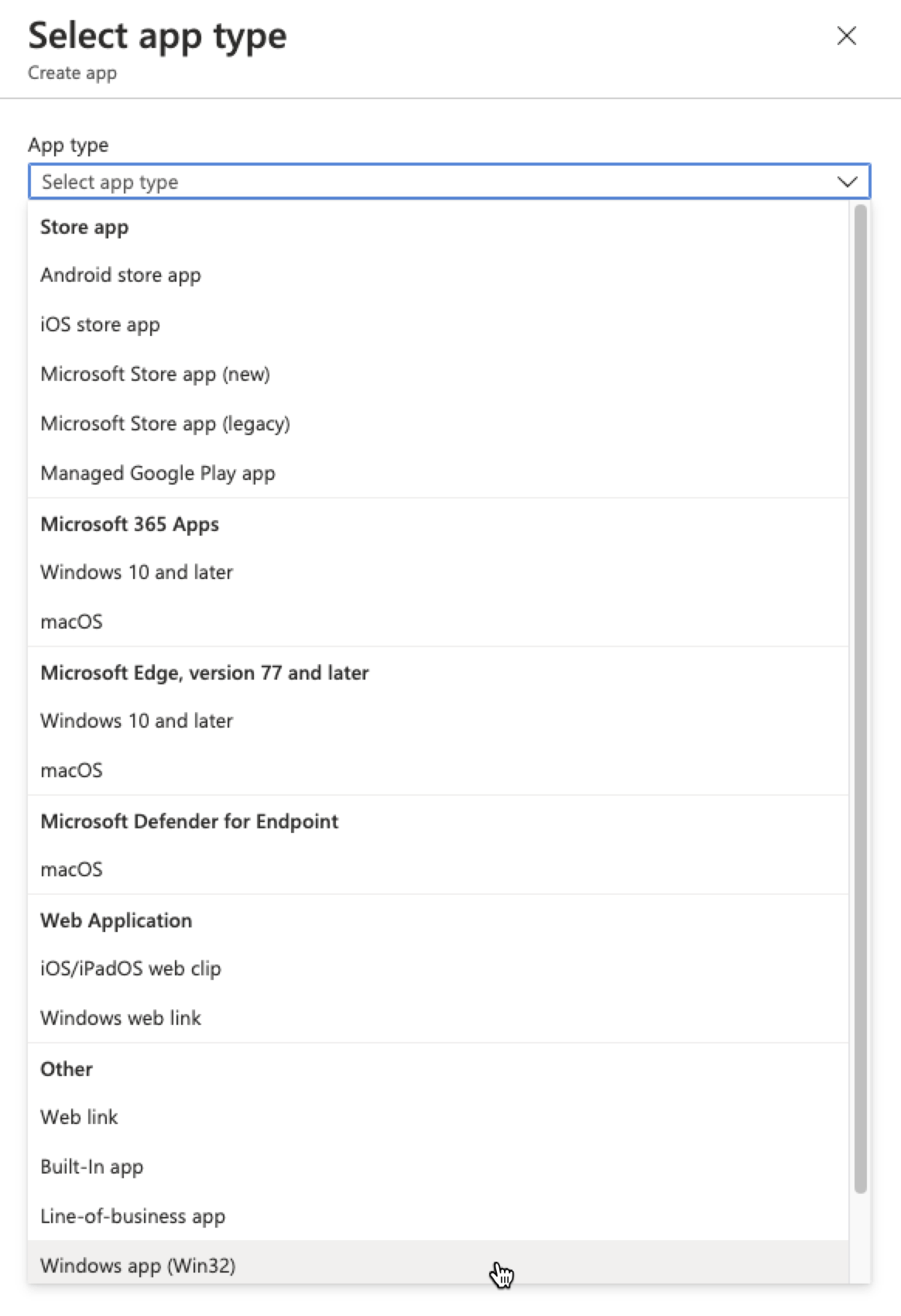
4. On the next page, upload the provided .intunewin file.
5. On the App information page, enter the following values:
- Name: WXP Collaboration MTR Agent
- Description: WXP Collaboration Microsoft Teams Room Agent for Windows
- Publisher: WXP Collaboration Inc.
- App Version: 4.8.X (contact your CSM for the version number)
1. In the **Program** tab, fill in the following, and click **Next**:
```
Install command: setup.exe -install -url http:// -broker ""
```
```
Uninstall command: setup.exe -uninstall
```
Install behavior: System
1. On the **Requirements** tab, configure the following, then click **Next**:
- Operating System architecture: 64-bit
- Minimum operating system: Admin's choice
1. On the **Detection rules** tab: Select **Manually configure detection rules**.
2. Add a detection rule by clicking **Add** and selecting **Registry** for rule type. Key path:
```
HKEY_LOCAL_MACHINE\SYSTEM\CurrentControlSet\Services\VyoptaTech InsightsDataCollectorService
```
- Value name: Description
- Detection method: String comparison
- Operator: Equals
- Value: WXP Collaboration Tech Insights Data Collector (Galaxy) (4.8.5.20)
Click **OK**, then select **Next**.
1. On the **Dependencies** tab, click **Next** (no input needed).
2. On the **Supersedence** tab, click **Next** (no input needed).
3. On the **Assignments** tab: Under **Required**, select **Add group** and select the group of MTR devices that you would like to deploy this to.
4. Select **Next**, review your configuration, and select **Create**.
Note
Microsoft Endpoint Manager may take up to an hour to apply new applications. This delay is a function of Intune, not WXP Collaboration.
## Verify Agent Installation
There are two methods of verifying that the Agent is installed on a device.
**In Endpoint Manager**:
1. Go To Devices.
2. Locate the MTR device.
3. Click on Managed Apps.
4. Locate WXP Collaboration MTR Agent.
5. You will see in the last column, "Installation Status", to indicate if it was installed or not.
**By logging into the MTR device**:
1. Log in to the MTR device using the preferred method.
2. Open up Windows Explorer.
3. Locate the WXP Collaboration directory under the C:\ drive.
## Uninstall the MTR Agent
1. In Endpoint Manager, go to "Apps"
2. Click **All Apps**
3. Locate "WXP Collaboration MTR Agent" and click on it.
4. Go to Properties
5. Scroll down to "Assignments" and click **Edit**.
6. Delete the group assignment under **Required**.
7. Add the same group to **Uninstall**.
8. Click on Review + Save and then Save.
Note
Endpoint Security, aka Intune, generally takes an hour to pick up the change to assignment groups. It can, however, take longer. This is not a WXP Collaboration function but an Endpoint Manager function.
## Contact Us
For any assistance, [create a support case](https://portal.us.document360.io/wxp/docs/creating-a-support-case) or email support@wxp.hp.com.