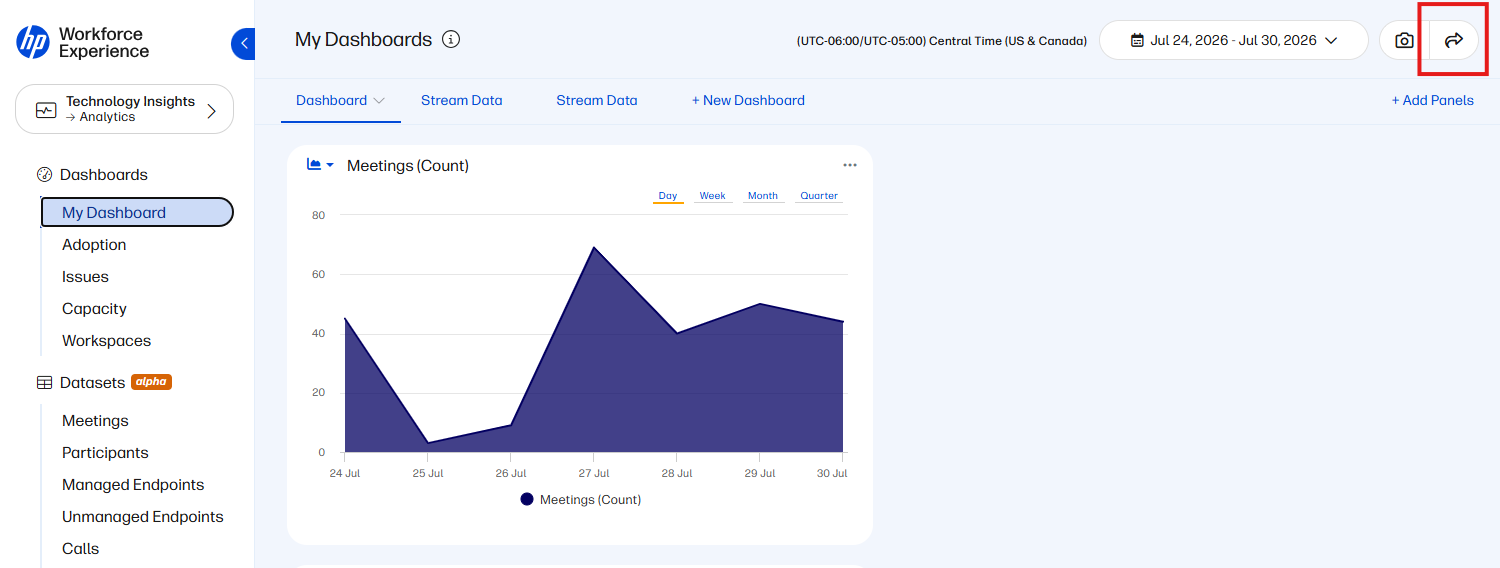
Reports can be generated in WXP Collaboration from Tech Insights Analytics. It's a simple process once you have filtered the data and the date range needed. Each page capable of generating a report contains a share button located on the top right-hand corner of the screen.
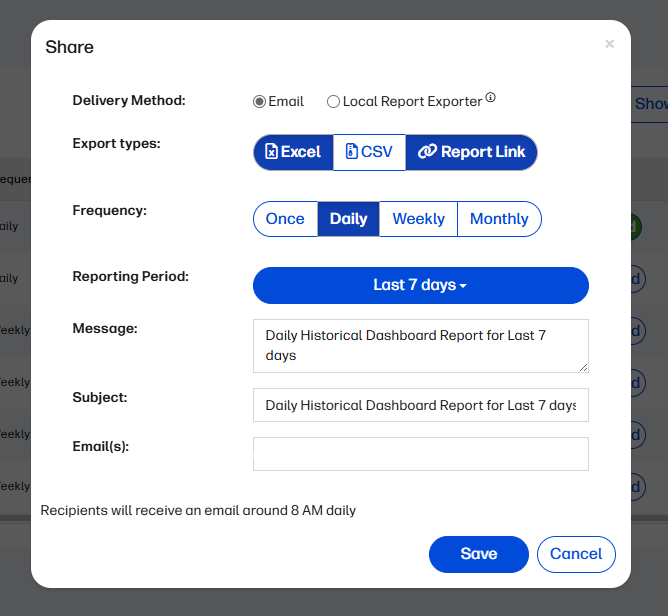
You can select the Delivery Method, Export Types, Frequency, Days you would like to receive the report, and the reporting period.
Managing Reports:
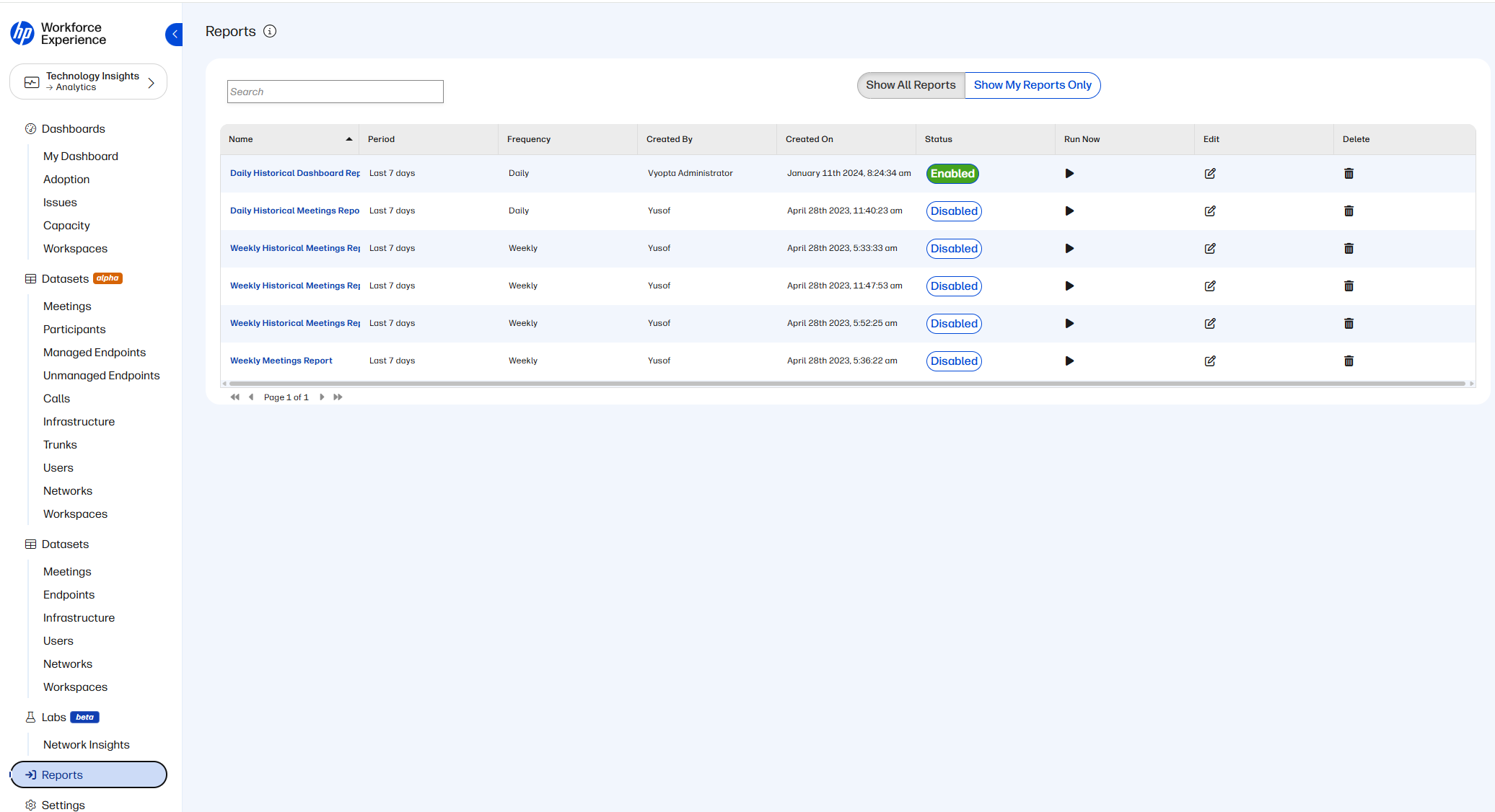
Saved reports can be managed by clicking on the "Reports" menu on the left-hand side within Tech Insights Analytics. By clicking a report, you can see the filters used, edit the frequency, export types, delivery days, and who receives the report.
Common Issues Observed with Sharing a Report
Receiving a "[Report Failure]" Email:
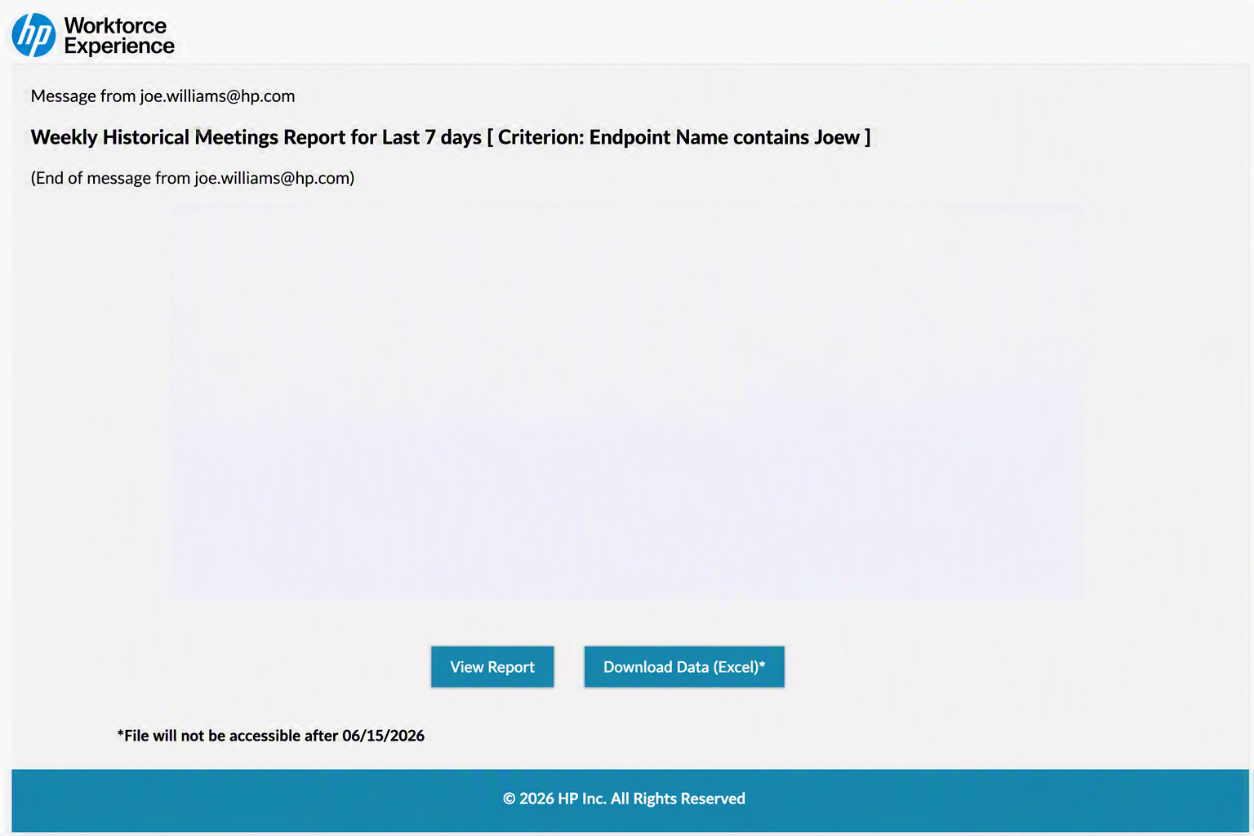
Depending on your environment and the number of daily calls, exporting a large number of calls can result in a failure email due to the processing failing. Excel and CSV files generally do not load when the files exceed a certain number of fields. When you receive an email noting a "Data Export Timeout", please generate a new report with a smaller dataset. For example, if you were attempting to export a year's worth of data, try a month. If a month's worth of data files, then try breaking the report into a week's worth of data.
An example of a failure email can be seen below:
Contact Us
For any assistance, email us at support@wxp.hp.com.
For FedRAMP-specific support, email us at fedramp-support@wxp.hp.com